
Recuva

Free Software Downloads for PC & Mac
Free Software Downloads for PC & Mac
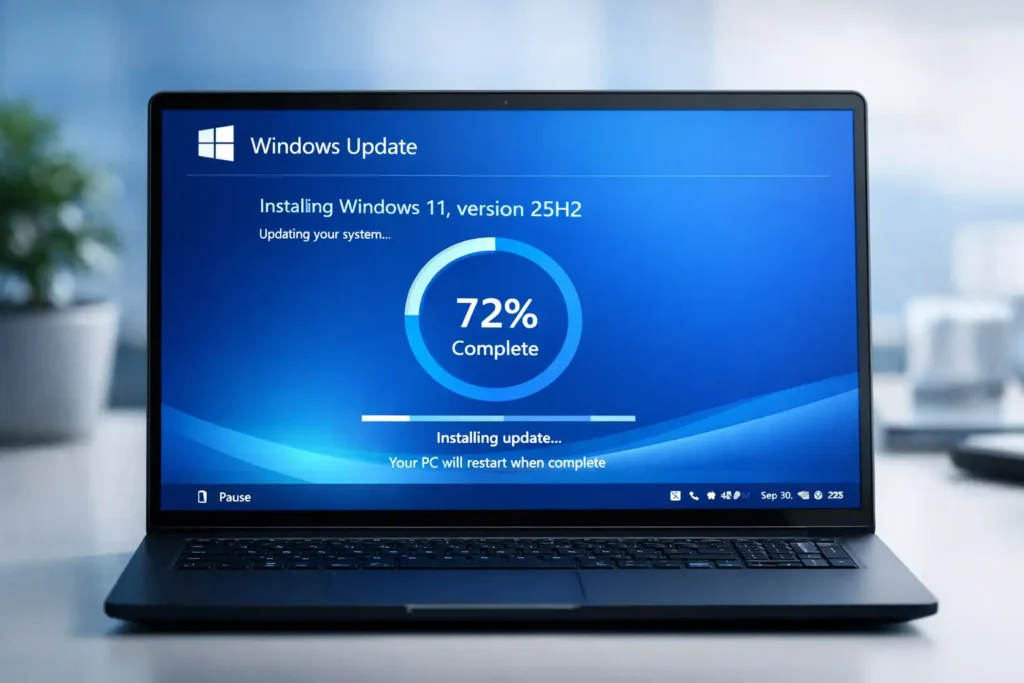
The Windows 11 25H2 update is one of Microsoft’s latest feature updates designed to improve system stability, security, and long-term support. The update provides invisible changes which protect your computer while it maintains its current state.
The Windows 11 25H2 update came out on September 2025 and it exists as a minor enablement package instead of a complete operating system upgrade. The installation process now proceeds with greater speed and efficiency than earlier Windows major updates.
This comprehensive guide will describe all aspects of the Windows 11 25H2 update which includes its features and system requirements and installation process and benefits and troubleshooting methods.
Windows 11 25H2 is the 2025 annual feature update for Windows 11. Microsoft releases a major update every year to improve performance, security, and compatibility.
Unlike previous updates, version 25H2 uses the same core platform as Windows 11 24H2. Because of this, the update activates features already present in the system rather than installing a completely new OS build.
Since the core files are already present in Windows 11 24H2, upgrading to 25H2 mainly unlocks improvements and extends support timelines.
Microsoft launched Windows 11 25H2 update on September 30 2025. The update became available for Windows Update installation on all eligible devices starting from that date. The rollout is staged, meaning not all devices receive the update at the same time. Microsoft uses this approach to detect issues and ensure compatibility across different hardware configurations. Users can manually check for the update in Windows Update settings if it has not appeared automatically.
Although the update focuses mainly on stability and security, several improvements and refinements are included.
The 25H2 update provides its most valuable benefit through its rapid installation process.
The process provides faster results than standard feature updates.
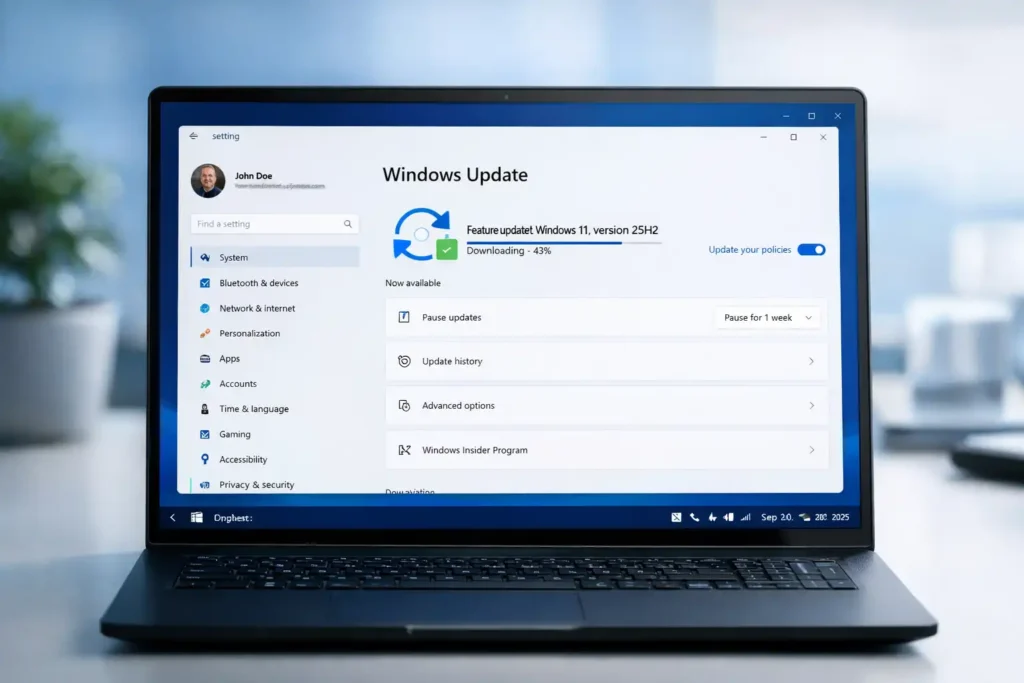
The Windows 11 25H2 update security improvements work as its main update feature. The update includes:
These improvements help protect your PC from modern cyber threats.
Microsoft removed outdated components from the system which included:
The legacy tools lost their usefulness which made their removal drive better security outcomes.
Windows 11 25H2 makes multiple hidden performance enhancements which work to improve system efficiency.
The system updates which users experience throughout Windows create a more seamless user experience.
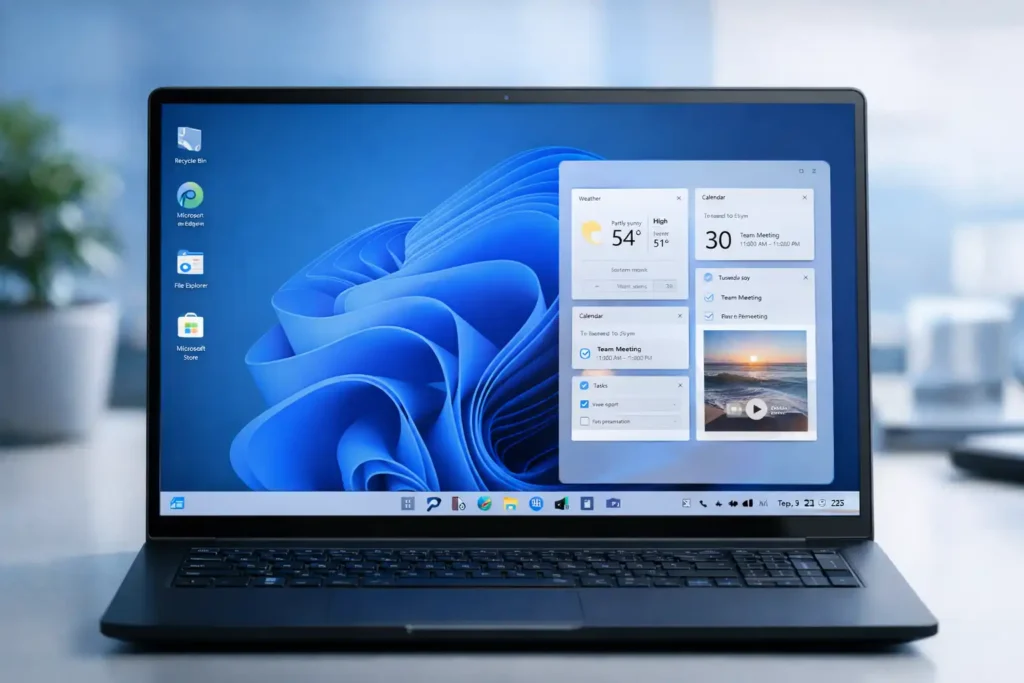
The Widgets panel in Windows 11 has been refined.
The system contains three new enhancements which improve its functionality.
Windows 11 25H2 system settings now provide advanced camera control features which users can access.
Users can now:
These features are especially useful for remote work and video conferencing.
If your PC already runs Windows 11, you can install the 25H2 update without additional hardware requirements.
| Component | Minimum requirements |
| Processor | 1GHz or faster |
| RAM | Minimum 4GB |
| Storage | 64GB |
| TPM | TPM 2.0 |
| Secure boot | Enabled |
| Graphic card | Compatible |
If your device runs Windows 11 24H2, it is almost certainly compatible with the 25H2 update.
Installing Windows 11 version 25H2 is very easy. Follow these steps:
The update becomes unavailable through Windows Update when users need to perform manual installation through different installation methods.
Steps include:
This method becomes valuable when Windows Update is failed.
Some users may face difficulties when they try to install the update. The following section presents typical problems together with their corresponding solutions.
Solution
Microsoft prevents updates from being installed on systems that do not meet compatibility requirements.
Solution
The issue requires Microsoft to resolve it and you need to wait until Microsoft releases new drivers for your system.
The Windows 11 25H2 installation will benefit most users according to current recommendations.
Reasons to upgrade
The update presents minimal danger because it requires only a short time for installation.
Windows 11 24H2 users should upgrade to 25H2 according to the recommendation. The update ensures your system remains secure and compatible with future updates and will provide support for several more years.
The most effective method to sustain system performance while protecting your computer from security breaches involves keeping your operating system up to date.