How to Use Netflix on Windows: A Complete Guide
With a vast selection of on-demand films, TV series, documentaries, and more, Netflix has completely changed the way we watch entertainment. For everyone who appreciates streaming media, Netflix has become an essential software, regardless of whether they binge-watch or simply sometimes enjoy a few episodes. However, did you know that you can use a Windows PC to watch Netflix as well? Everything you need to know about streaming Netflix on a Windows device will be covered in this post.
Key Features of Netflix
Whether you use the app or browser, Netflix provides some great features on Windows that can increase your viewing experience:
Personal recommendations
Based on your viewing preferences, both browser and app make personal suggestions. Netflix learns more about your taste as much as you see.
Multiple Profiles
You can create a separate Netflix profile for each member of your family. Each person may have their own preferences, settings and history to see.
Playback Controls
You can control playback speed, turn on subtitles, and adjust video quality based on your internet speed.
Multiple Devices Support
Windows is no exception to the rule you can use your Netflix account on various devices. Netflix adjusts in various screen sizes, so you can also see on your laptop, desktop or external display.
Getting Started with Netflix on Windows
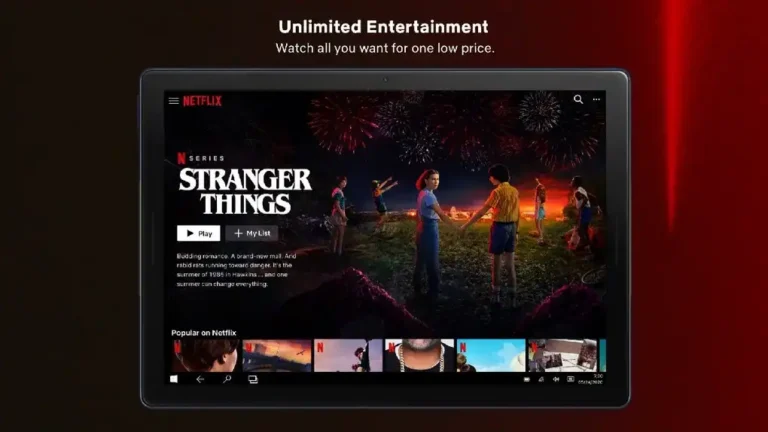
If you have a Windows 10 or Windows 11 device, you can easily access Netflix, either through the official Netflix app or directly from your browser.
Install the Netflix App from the Microsoft Store
The Netflix app offers a more streamlined experience for watching movies and TV shows, with features like offline viewing. Here’s how to install it:
Open the Microsoft Store
- Click on the Start menu (Windows icon) in the bottom left corner of your screen.
- Type Microsoft Store in the search bar and select the app from the list.
Search for Netflix
- In the Microsoft Store, use the search bar at the top right and type Netflix.
- Click on the Netflix app in the search results.
Download and Install
- To begin the installation process, select the Get option on the Netflix app page.
- Wait for the download to finish. Your system will install it automatically.
Open the Netflix App
- Once installed, you can open the Netflix app by clicking on the launch in the Microsoft Store or searching for Netflix in the Start menu.
Sign in to Your Account
- Launch the Netflix app, and you’ll be prompted to sign in with your Netflix account credentials (email and password).
- After logging in, you can start watching your favorite movies and shows.