How to Fix WhatsApp Desktop Crashing on Windows 11 (7 Working Solutions in 2025)
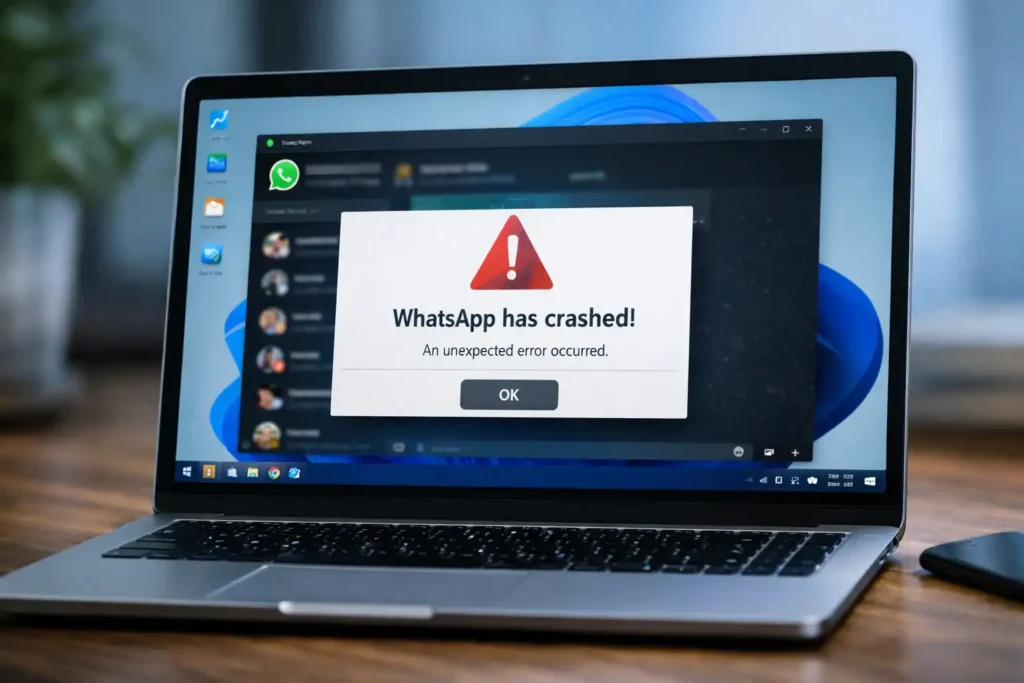
In 2025, WhatsApp Desktop on Windows 11 started crashing. Users reported that their app either closed by itself, got stuck when opened, or crashed when messages were sent or received.
If WhatsApp is crashing on your Windows 11 PC, relax! Because we have 7 best error-free methods that can actually solve the problem.
These fixes work with:
WhatsApp Not Launching on Windows 11.
WhatsApp Automatically Closes After Launching.
WhatsApp Freezing or Not Responding.
WhatsApp Crashes Opening Media or Chats.
So, let us begin the process.
Why does WhatsApp Desktop Keep Crashing?
Before going for troubleshooting, it is good to know what the causes are:
Outdated WhatsApp Desktop Version.
Corrupt application cache or data.
Windows 11 Compatibility Issues.
Missing Windows Updates.
Graphics Driver Conflict.
Damaged installation files.
Common Signs of WhatsApp Desktop Crashing on window 11
Before WhatsApp Desktop crashes completely, Windows 11 users often notice warning sign.
Common symptoms include:
WhatsApp opens and closes within a few seconds.
When you click on a chat or media the app get freeze.
After opening WhatsApp CPU or RAM usage suddenly increases.
WhatsApp shows a white or black screen before crashing.
The app crashes when receiving images or voice messages.
If you’re experiencing one or more of these symptoms, follow the fixes below carefully.
Fixing WhatsApp Desktop Crashing on Windows 11
Fix 1: Restart WhatsApp & Your PC
Close WhatsApp completely.
Restart your Windows PC.
Open WhatsApp Desktop again.
If again it crashes, move to the next fix.
Fix 2: Update WhatsApp Desktop
Unlike the new version, older ones crash mostly.Open Microsoft Store.
Search for WhatsApp Desktop.
Click Update if available.
Or download the latest version from the official website.
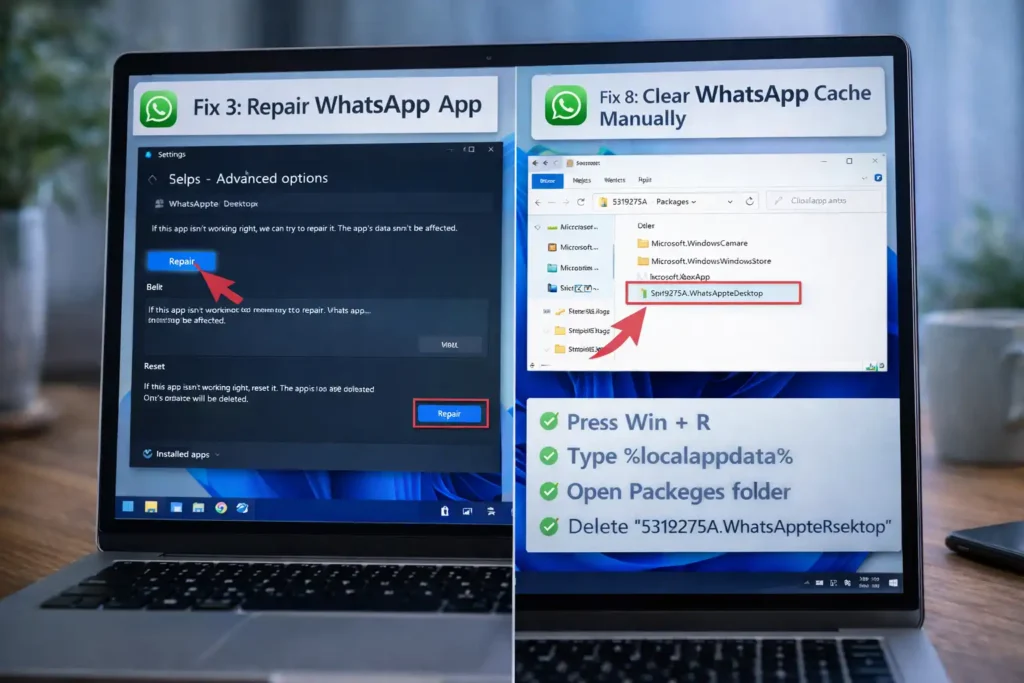
Fix 3: Repair WhatsApp App, quite similar to that Windows 11 repairs broken applications.
Go to Settings -> Apps -> Installed apps
Search for WhatsApp
Click the 3 dots -> Advanced Options
Click Repair
Open WhatsApp again and check.
Fix 4: Reset WhatsApp App (IMPORTANT)
⚠ You will be logged out upon doing this.
Settings → Apps → Installed Apps → Find WhatsApp
Advanced Options
Reset
Now re-login and check again.
Fix 5: Run WhatsApp with Admin Rights
Right click the shortcut for WhatsApp
Select Run as administrator
If problem resolved, set it back to always:
Right click → Properties → Compatibility → Check Run as administrator
Fix 6: Update Windows 11 & Drivers
Settings → Windows Update → Check for updates:
Update Downloads.
Update video drivers from Device Manager or website of the manufacturer.
Fix 7: Reinstall WhatsApp Desktop
This is, of course, the last and most proven solution.
Uninstall WhatsApp from Settings → Apps
Restart the PC Download WhatsApp Desktop and install.
Log in
Advanced Fixes if WhatsApp Still Crashes
If WhatsApp Desktop is still crashing after trying all basic fixes, try these advanced methods.
Fix 8: Clear WhatsApp Cache Manually
Sometimes corrupted cache files remain even after resetting the app.
Press Win + R, type %localappdata% and press Enter
Open the Packages folder
Find the folder related to WhatsApp
Delete it and restart your PC
Reinstall WhatsApp Desktop
Fix 9: Disable Hardware Acceleration
Hardware acceleration can cause crashes on certain graphics cards.
If you can open WhatsApp briefly:
Go to WhatsApp Settings → Advanced
Turn off Hardware Acceleration
Restart the app and test again.
Fix 10: Create a New Windows User Profile
Sometimes the Windows user profile becomes corrupted.
Create a new Windows account and test WhatsApp there:
Settings → Accounts → Other users → Add account
Log in with new account → Install WhatsApp → Test
WhatsApp Desktop Crashing on Window 11 Troubleshooting.