Microsoft Confirms Windows 10 End of Support (October 2025) – What Users Must Do Now

Microsoft confirms Windows 10 end of support October 14 2025 – what users must do now

Microsoft Confirms Windows 10 End of Support (October 2025) – What Users Must Do Now

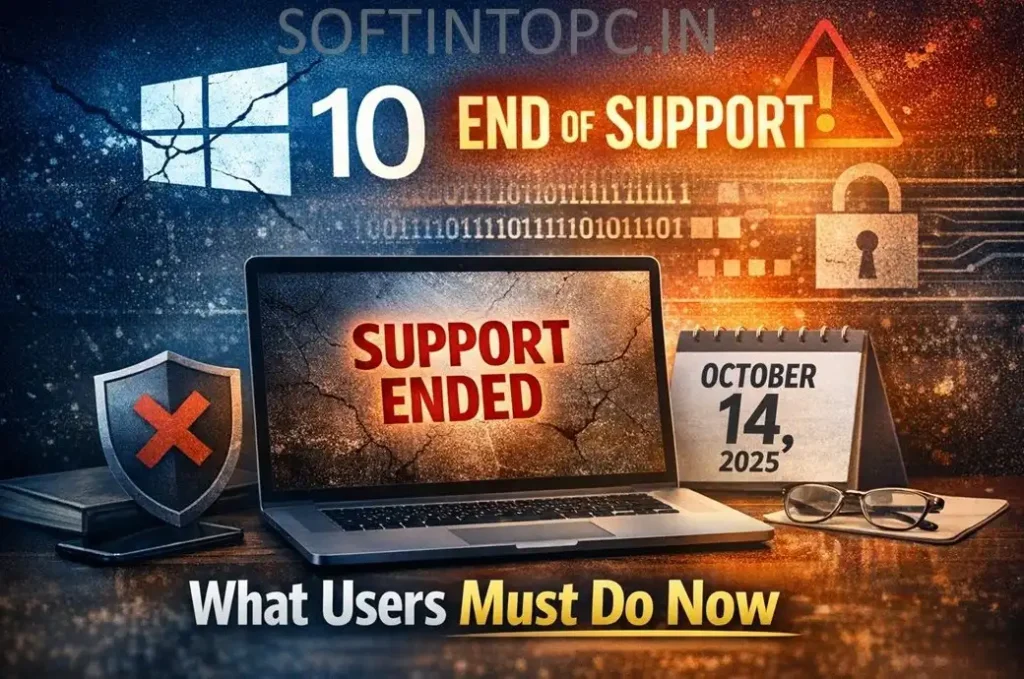
On October 14, 2025, an era came to an end. With Microsoft’s formal confirmation that Windows 10 support has ended, millions of PCs around the world are starting a new chapter in their lives. If you or your company are still using Windows 10, you need to know what that implies and what you need to do to be safe and productive.

What “End of Support” for Windows 10 Really Means

Windows 10 reached its end of support period after more than ten years since on October 14, 2025.Microsoft officially confirmed this which results in the following changes:

  • Security updates will no longer be provided
  • Technical assistance and bug fixes are discontinued
  • Feature updates or improvements are no longer released

Your Windows 10 PC will still work, but without ongoing updates, it becomes increasingly vulnerable to cyber threats, malware, and performance issues.The operating system will continue to function but Microsoft will stop all maintenance activities.

Why This Matters for Users Now

The operating system Windows 10 has achieved historical status as the most widely used system because it operates on hundreds of millions of desktop and laptop computers. But software that no longer receives security updates essentially becomes static — and static software is increasingly risky to use:

Security Risks Grow

  • The system loses its ability to receive security patches after updates stop.
  • Cybercriminals can exploit known issues.
  • Your sensitive PC data becomes more vulnerable to theft.

An unprotected PC becomes easier for hackers to target, especially if you use the system for internet browsing, email, or business tasks.

App Compatibility

Many third-party applications may eventually stop working properly on outdated systems or provide limited functionality over time.

Support Vanishes

Microsoft support specialists will stop providing Windows 10 device support when you need help with your Windows 10 device.

What Microsoft Recommends You Do Now

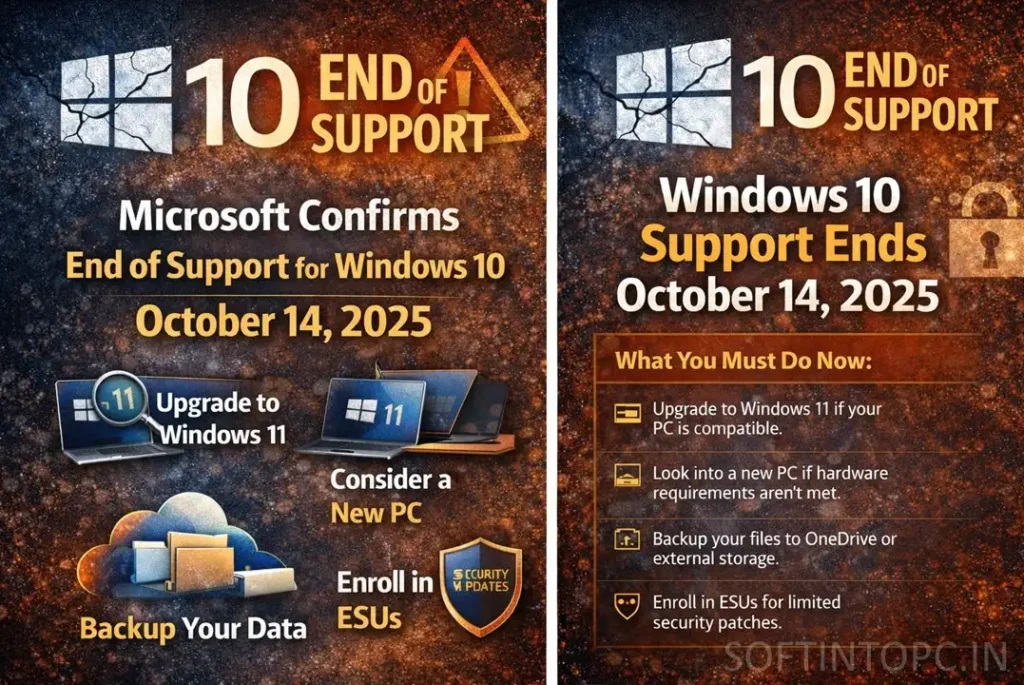
Microsoft has outlined several paths for users to stay secure, productive, and supported beyond Windows 10’s end of life — whether you’re a casual PC user a professional user or someone who handles multiple devices at their job.

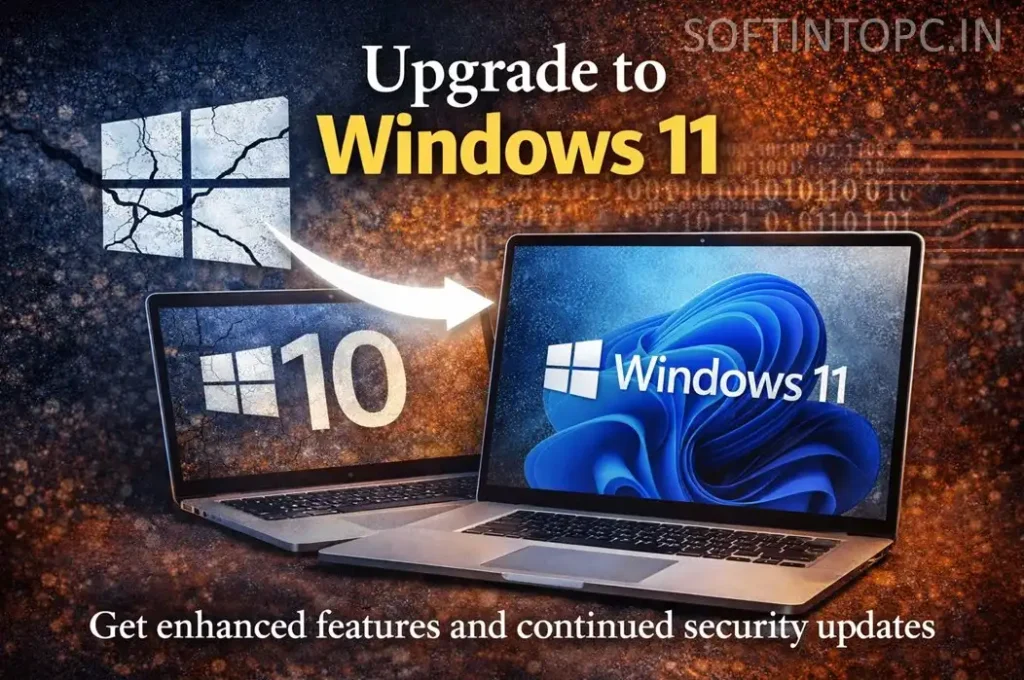
1. Upgrade to Windows 11 (Free, if Your Device Is Compatible)

You can upgrade your current windows to Windows 11 because it meets the necessary hardware specifications for the operating system. To check compatibility:

  • Go to Settings > Update Security > Windows Update
  • Select “Check for updates”

The system will present Windows 11 upgrade option to users who meet the eligibility criteria.Upgrading provides users with:

  • Security updates
  • System enhancements and new functions
  • Complete Microsoft assistance

Windows 11 receives permanent updates as Microsoft develops its upcoming Windows platform which serves as their future vision.


2. Purchase a New Windows 11-Ready PC

You should buy a new Windows 11 PC because your current device fails to meet Windows 11 requirements which commonly occurs with older hardware.

Modern PCs deliver:

  • Users experience better system performance.
  • Users receive enhanced protection through advanced security features.
  • The new system provides extended operational life compared to upgrading outdated equipment.

Companies that manufacture original equipment design their systems to enable customers to return their old laptops and desktop computers for environmentally safe recycling through trade-in and recycling programs.

3. Enroll in the Extended Security Updates (ESU) Program

The Microsoft Extended Security Updates (ESU) program gives extra time to use Windows 10 after their official support ends.

➡️ The ESU program delivers essential security updates which protect against critical and important threats until October 13, 2026, despite the end of official support.However:

  • The ESU program requires users to complete enrollment before the organization will stop providing updates.
  • A Microsoft account exists as a requirement for users who want to complete the program enrollment process.
  • Costs along with terms of service and product availability may vary by region.

The ESU program provides additional time for users who need to delay their operating system transition from unsupported systems to supported ones.

4. Backup Your Files and Settings

The protection of personal data needs to take priority before any significant system update which includes both PC upgrades and complete system replacements.

Microsoft recommends using tools like Windows Backup or OneDrive to:

  • Save documents and photos.
  • Preserve settings and configurations.
  • Make migration to Windows 11 (or a new device) smoother.

Backup should always be the first step before migrating to a new operating system.

What Happens If You Don’t Act?

You can continue using Windows 10 after October 14, 2025 — nothing will stop your PC from turning on or performing everyday tasks.But with support gone:

  • You will face security threats which will increase in number.
  • New third-party applications will encounter problems with their operational functionality.
  • The software ecosystem will continue to lose support for its existing products.
  • You lose access to all Microsoft technical support services.

The increasing dangers of using an unsupported operating system will reach a point where it becomes impractical to continue using it.

Microsoft confirms Windows 10 end of support October 14 2025 – what users must do now

Myths and Realities Around Windows 10 Support Ending

The online community has developed various false beliefs since the support termination announcement. Here’s what you shouldn’t assume:

Myth: “My PC will stop working entirely.”

– The system will continue to operate but it will lose all future updates and technical assistance.

Myth: “A single antivirus tool will keep me safe.”

– Security software provides protection against threats but system vulnerabilities enable attacks to succeed. Nova vulnerabilities still expose you.

Myth: “I’ll be forced to pay for Windows 11.”

– The Windows 11 upgrade becomes available at no cost for users whose current PC meets the required compatibility standards.

Recommended Checklist: What to Do Next

The users who experience problems because Windows 10 no longer receives support should follow this straightforward guide to solve their issues.

1. Check Compatibility With Windows 11

The PC Health Check application together with Windows Update should be used to determine whether your system meets Windows 11 requirements.

2. Backup Your System

Windows Backup together with OneDrive should be used to safeguard all your Windows files and applications and system configurations.

3. Plan Your Upgrade

The user should upgrade their system to Windows 11 when they meet the eligibility requirements.

4. Consider ESU if You Need Time

The ESU window for enrollment will end so you must complete your enrollment before that date.

5. Explore New Hardware Options

The cost of new equipment decreases through the use of trade-in programs.

Customers who acquire new PCs will receive better system performance and extended product support throughout the entire product lifespan.

Conclusion

Microsoft has officially ended support for its most successful operating system, Windows 10.. While your PC will continue to function, but no technical support increases long-term risks.

The current time requires you to practice active threat protection because it enables you to achieve system security while safeguarding data and ensuring uninterrupted digital system performance.

You should proceed with your Windows 11 upgrade, computer purchase, and extended security support registration at this moment. Microsoft has established secure and effective procedures for you to follow.


Related Topic